<?xml version="1.0" encoding="utf-8"?><feed xmlns="http://www.w3.org/2005/Atom" ><generator uri="https://jekyllrb.com/" version="4.3.1">Jekyll</generator><link href="https://mkoerner.de/feed.xml" rel="self" type="application/atom+xml" /><link href="https://mkoerner.de/" rel="alternate" type="text/html" /><updated>2022-12-27T08:07:39+01:00</updated><id>https://mkoerner.de/feed.xml</id><title type="html">Martin Körner</title><subtitle>My personal website.
</subtitle><entry><title type="html">How to Disable Win+L Lock Shortcut While Keeping Lock Functionality</title><link href="https://mkoerner.de/disable-windows-lock-shortcut/" rel="alternate" type="text/html" title="How to Disable Win+L Lock Shortcut While Keeping Lock Functionality" /><published>2018-03-30T19:00:00+02:00</published><updated>2018-03-30T19:00:00+02:00</updated><id>https://mkoerner.de/disable-windows-lock-shortcut</id><content type="html" xml:base="https://mkoerner.de/disable-windows-lock-shortcut/"><![CDATA[<p><strong>The problem:</strong> When disabling the <code class="language-plaintext highlighter-rouge">Win+L</code> shortcut on Windows 10 using a registry entry, not only does the shortcut get removed but the lock functionality in general — even when suspending the computer or putting it in hibernate.</p>

<p><strong>The solution:</strong> Creating two scheduled tasks — <code class="language-plaintext highlighter-rouge">disableLock</code> and <code class="language-plaintext highlighter-rouge">enableLock</code> — with the Windows Task Scheduler to update the registry entry.
The goal is to disable the locking after unlocking the system to get rid of the <code class="language-plaintext highlighter-rouge">Win+L</code> shortcut and to enable the locking right before the system is about to get locked, suspended, or put into hibernate with a script.</p>

<p><strong>The downside:</strong> The <code class="language-plaintext highlighter-rouge">Sleep</code> and <code class="language-plaintext highlighter-rouge">Hibernate</code> buttons in the windows menu will still not lock your computer and there will be no <code class="language-plaintext highlighter-rouge">Lock</code> button.
The locking will only be triggered when executing the lock/suspend/hibernate scripts.</p>

<p>If this sounds good to you, you can follow the instructions below.
The idea to use the Windows Task Scheduler to prevent the <a href="https://en.wikipedia.org/wiki/User_Account_Control">UAC</a> prompt that usually is displayed when running <code class="language-plaintext highlighter-rouge">.reg</code> files is taken from <a href="https://www.tenforums.com/tutorials/57690-create-elevated-shortcut-without-uac-prompt-windows-10-a.html">this tutorial by Shawn on tenforms.com</a>. 
Another solution would be to disable UAC altogether but I didn’t want to go that far.</p>

<p>First, we create the <code class="language-plaintext highlighter-rouge">disableLock</code> task.</p>

<p>For this, open the Task Scheduler, for example by typing <code class="language-plaintext highlighter-rouge">taskschd.msc</code> in the <code class="language-plaintext highlighter-rouge">Run</code> dialog.<br />
Next, click on <code class="language-plaintext highlighter-rouge">Create Task...</code> in the <code class="language-plaintext highlighter-rouge">Actions</code> menu on the right.</p>

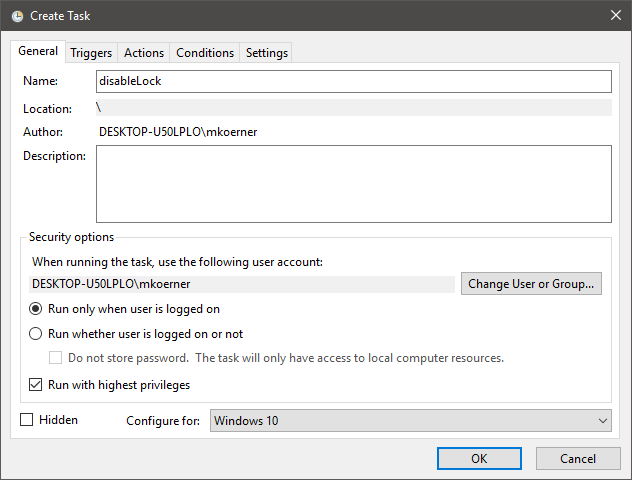
<p>On the <code class="language-plaintext highlighter-rouge">General</code> tab, add the name <code class="language-plaintext highlighter-rouge">disableLock</code>, check <code class="language-plaintext highlighter-rouge">Run with highest privileges</code>, and select <code class="language-plaintext highlighter-rouge">Configure for: Windows 10</code>:</p>

<p><img src="https://media.mkoerner.de/posts/2018-03-30-disable-general.png" alt="disableLock General" /></p>

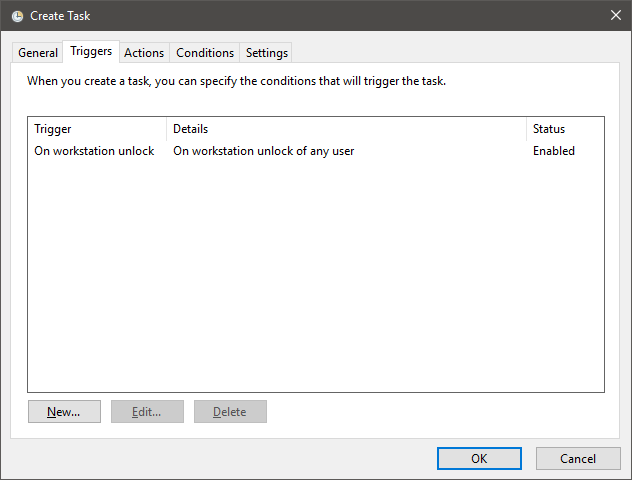
<p>On the <code class="language-plaintext highlighter-rouge">Triggers</code> tab, add a trigger for <code class="language-plaintext highlighter-rouge">On workstation unlock</code>:</p>

<p><img src="https://media.mkoerner.de/posts/2018-03-30-disable-triggers.png" alt="disableLock Triggers" /></p>

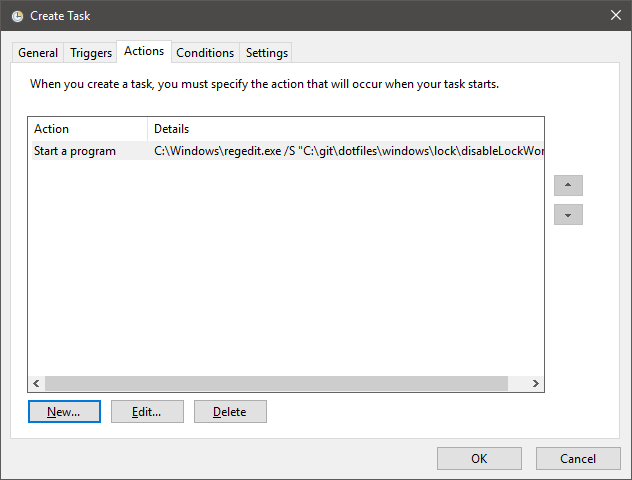
<p>On the <code class="language-plaintext highlighter-rouge">Actions</code> tab, add an action <code class="language-plaintext highlighter-rouge">Start a program</code> which runs the program <code class="language-plaintext highlighter-rouge">C:\Windows\regedit.exe</code> with the arguments <code class="language-plaintext highlighter-rouge">/S "&lt;PATH TO&gt;\disableLockWorkstation.reg"</code>:</p>

<p><img src="https://media.mkoerner.de/posts/2018-03-30-disable-actions.png" alt="disableLock Actions" /></p>

<p>You can find <code class="language-plaintext highlighter-rouge">disableLockWorkstation.reg</code> <a href="https://github.com/mkrnr/dotfiles/blob/master/windows/lock/disableLockWorkstation.reg">on GitHub</a>.</p>

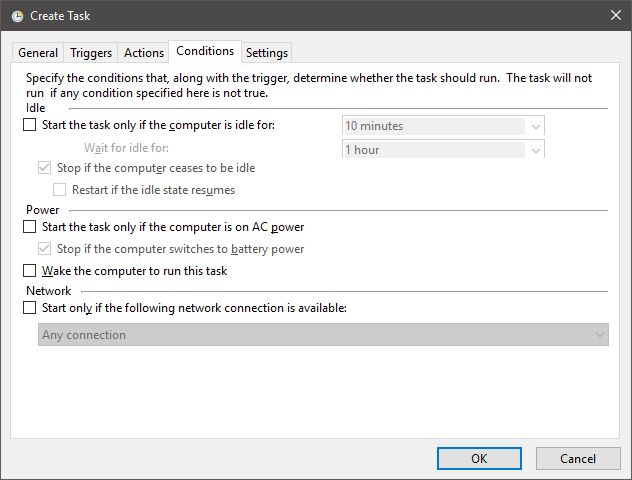
<p>On the <code class="language-plaintext highlighter-rouge">Conditions</code> tab, uncheck <code class="language-plaintext highlighter-rouge">Start the task only if the comupter is on AC power</code>:</p>

<p><img src="https://media.mkoerner.de/posts/2018-03-30-disable-conditions.png" alt="disableLock Conditions" /></p>

<p>The <code class="language-plaintext highlighter-rouge">Settings</code> tab doesn’t require changes.</p>

<p>Next, create another task with <code class="language-plaintext highlighter-rouge">Create Task...</code>.</p>

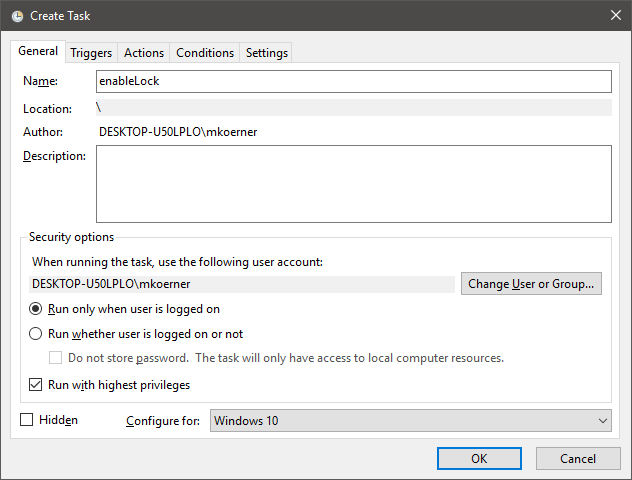
<p>On <code class="language-plaintext highlighter-rouge">General</code>, add the name <code class="language-plaintext highlighter-rouge">enableLock</code>, again check <code class="language-plaintext highlighter-rouge">Run with highest privileges</code>, and select <code class="language-plaintext highlighter-rouge">Configure for: Windows 10</code>:</p>

<p><img src="https://media.mkoerner.de/posts/2018-03-30-enable-general.png" alt="enableLock Conditions" /></p>

<p>For <code class="language-plaintext highlighter-rouge">enableLock</code>, no trigger will be added.
Instead, we will later trigger the task using a script that will also trigger the locking/suspension/hibernate.</p>

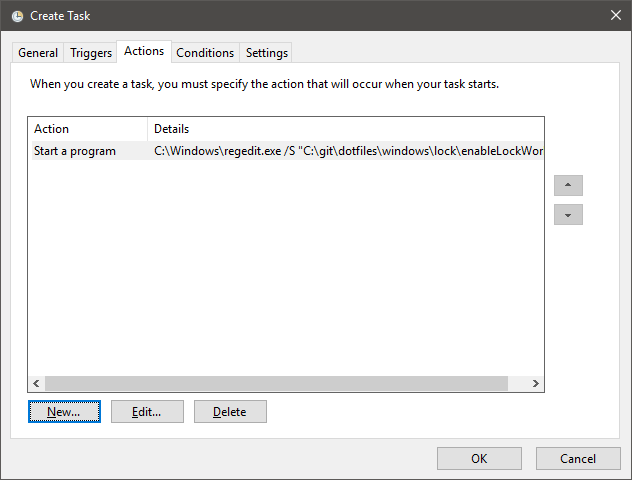
<p>On <code class="language-plaintext highlighter-rouge">Actions</code>, add an action <code class="language-plaintext highlighter-rouge">Start a program</code> which runs the program <code class="language-plaintext highlighter-rouge">C:\Windows\regedit.exe</code> with the arguments <code class="language-plaintext highlighter-rouge">/S "&lt;PATH TO&gt;\enableLockWorkstation.reg"</code>:</p>

<p><img src="https://media.mkoerner.de/posts/2018-03-30-enable-actions.png" alt="enableLock Actions" /></p>

<p>You can find <code class="language-plaintext highlighter-rouge">enableLockWorkstation.reg</code> <a href="https://github.com/mkrnr/dotfiles/blob/master/windows/lock/enableLockWorkstation.reg">on GitHub</a>.</p>

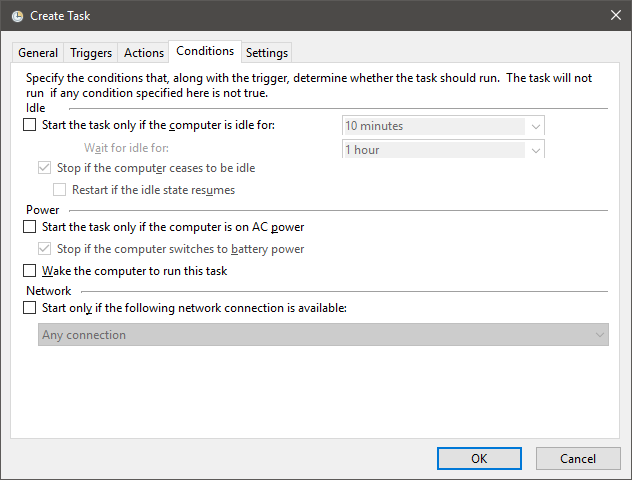
<p>On the <code class="language-plaintext highlighter-rouge">Conditions</code> tab, again uncheck <code class="language-plaintext highlighter-rouge">Start the task only if the comupter is on AC power</code>:</p>

<p><img src="https://media.mkoerner.de/posts/2018-03-30-enable-conditions.png" alt="enableLock Conditions" /></p>

<p>Again, the <code class="language-plaintext highlighter-rouge">Settings</code> tab doesn’t require changes.</p>

<p>As mentioned above, the <code class="language-plaintext highlighter-rouge">enableLock</code> task will be triggered via scripts.
I decided to use Powershell scripts since they provide a way to run both suspend and hiberate without any additional tricks on Windows 10.
The <code class="language-plaintext highlighter-rouge">enableLock</code> task is triggered with <code class="language-plaintext highlighter-rouge">schtasks /run /tn "enableLock"</code>.
You can find my scripts <code class="language-plaintext highlighter-rouge">lock.ps1</code>, <code class="language-plaintext highlighter-rouge">suspend.ps1</code>, and <code class="language-plaintext highlighter-rouge">hibernate.ps1</code> <a href="https://github.com/mkrnr/dotfiles/tree/master/windows/lock">on GitHub</a>.</p>

<p>The very last step is to create shortcuts for the start menu to easily trigger the scripts.</p>

<p>For this, open <code class="language-plaintext highlighter-rouge">C:\Users\&lt;USERNAME&gt;\AppData\Roaming\Microsoft\Windows\Start Menu</code> in the File Explorer and create a new shortcut with the name <code class="language-plaintext highlighter-rouge">Lock</code> (or similar).<br />
Open <code class="language-plaintext highlighter-rouge">Properties</code> and on the <code class="language-plaintext highlighter-rouge">Shortcut</code> tab, set the target <code class="language-plaintext highlighter-rouge">%SystemRoot%\system32\WindowsPowerShell\v1.0\powershell.exe -noprofile -executionpolicy bypass -file "&lt;PATH TO&gt;\lock.ps1"</code>.<br />
Repeat this to add shortcuts for the <code class="language-plaintext highlighter-rouge">suspend.ps1</code> and <code class="language-plaintext highlighter-rouge">hibernate.ps1</code> scripts.</p>

<p>Let me know if you run into any issues or have remarks about this approach.</p>]]></content><author><name></name></author><category term="windows" /><summary type="html"><![CDATA[The problem: When disabling the Win+L shortcut on Windows 10 using a registry entry, not only does the shortcut get removed but the lock functionality in general — even when suspending the computer or putting it in hibernate.]]></summary></entry></feed>